Invoices Grid - Views Library
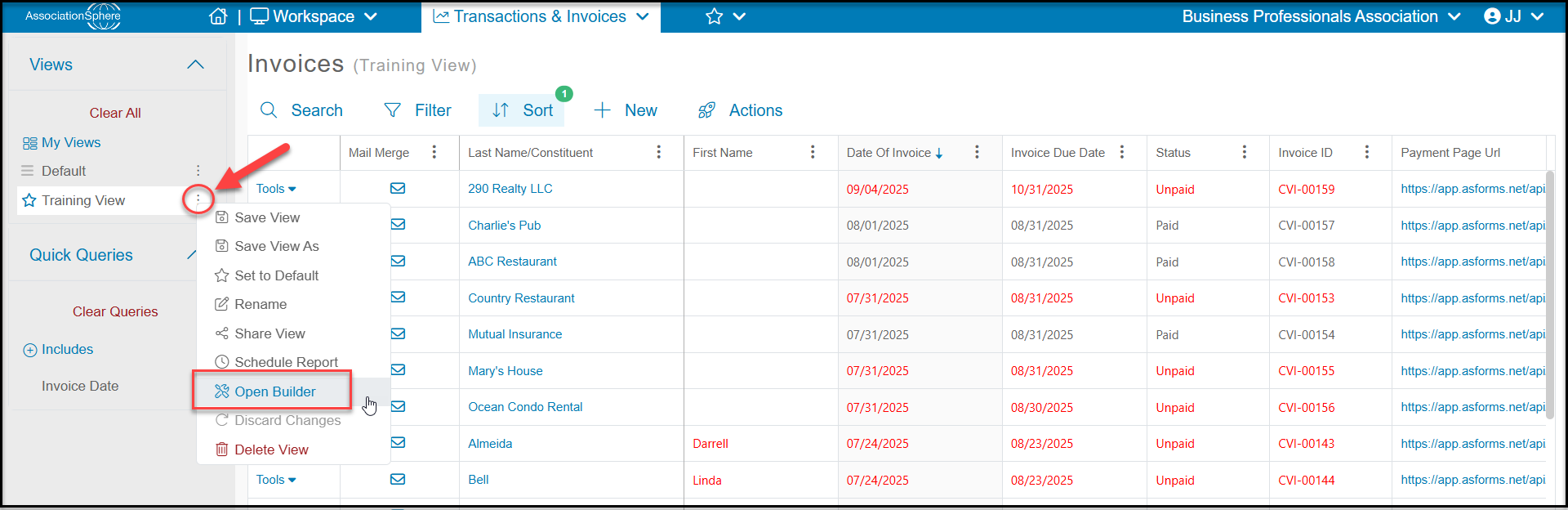
The Invoices grid has some built-in views available you can use as a starting point for creating reports. Clicking on the three dots next to any view, you can select Open Builder to open the Views Library.
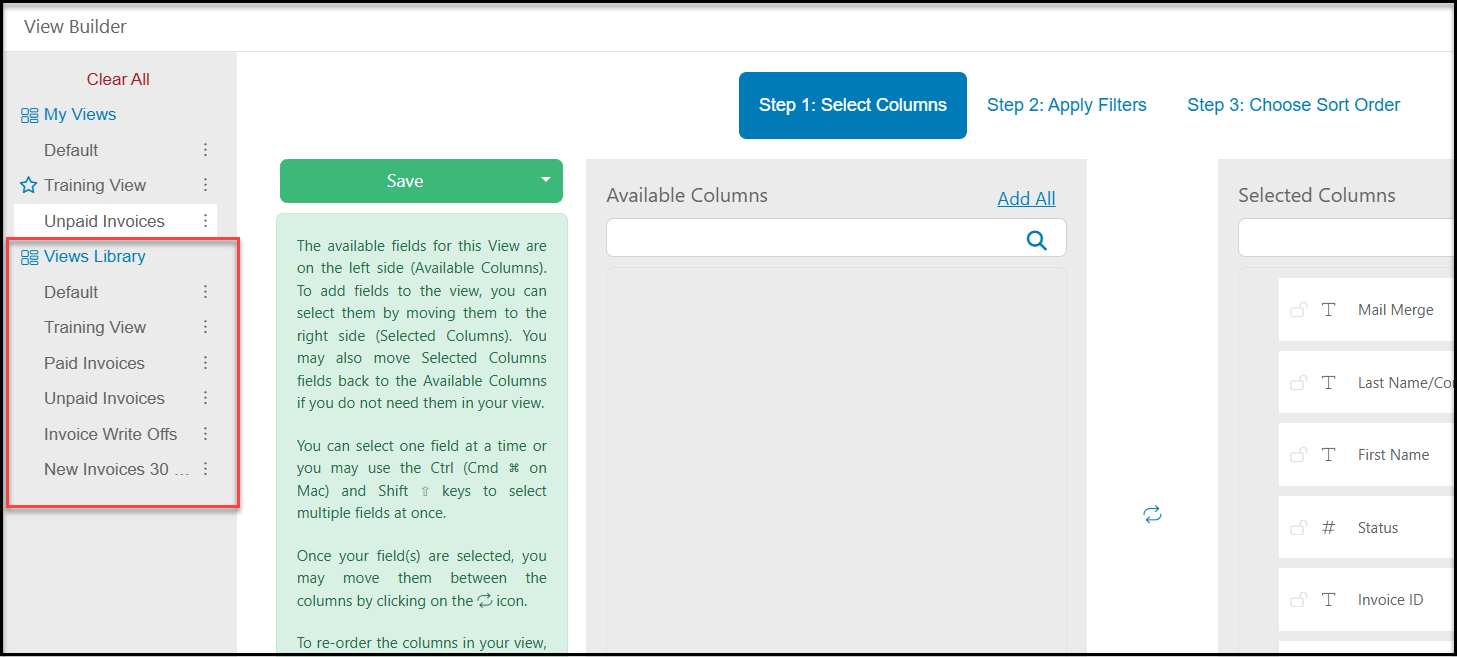
In the View Builder on the left side of the page you will find the Views Library. The library includes the following views:
- Default - will show all the columns in the default order with no filters or sorts applied.
- Training View - shows the columns in the order used for training with a descending sort applied to the Invoice Date field (showing newest at the top of the list).
- Paid Invoices - a list of all invoices with a Status of Paid.
- Unpaid Invoices - which includes a filter to only show Unpaid or Partially Paid invoices.
- Invoice Write-offs - includes a list of all invoices marked as Write Off.
- New Invoices 30 Days - will show a list of invoices entered in the last 30 days.
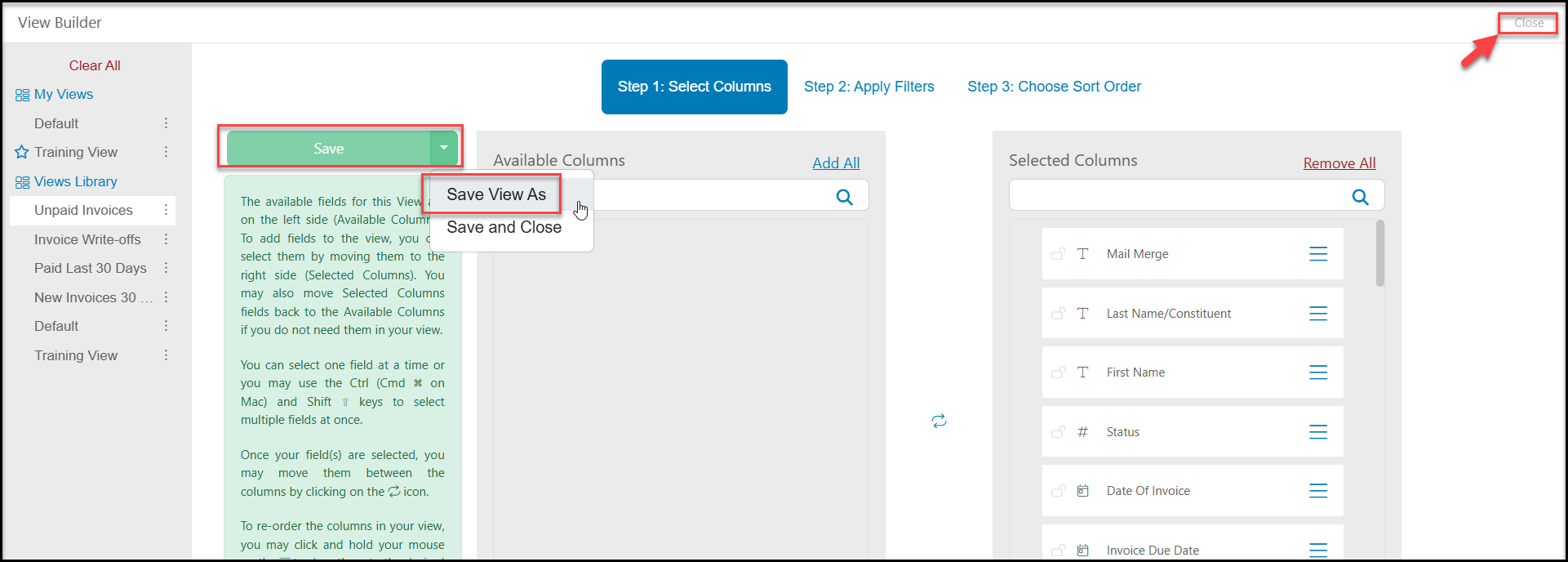
You can select the view by clicking on the name. You can move the columns, apply filters and sorts, and when you are ready to return to the grid, click on the down arrow next to Save. Choose Save View As and then enter the new name of your view to add to your list of My Views. Then click Close in the top right corner. You will be able to further customize your view as described in the next section.
Creating Custom Views on the Invoices Grid
There is only one Quick Query option available on the Invoices grid. You can set up a query for the Invoice Date, which is the date the invoice was created.
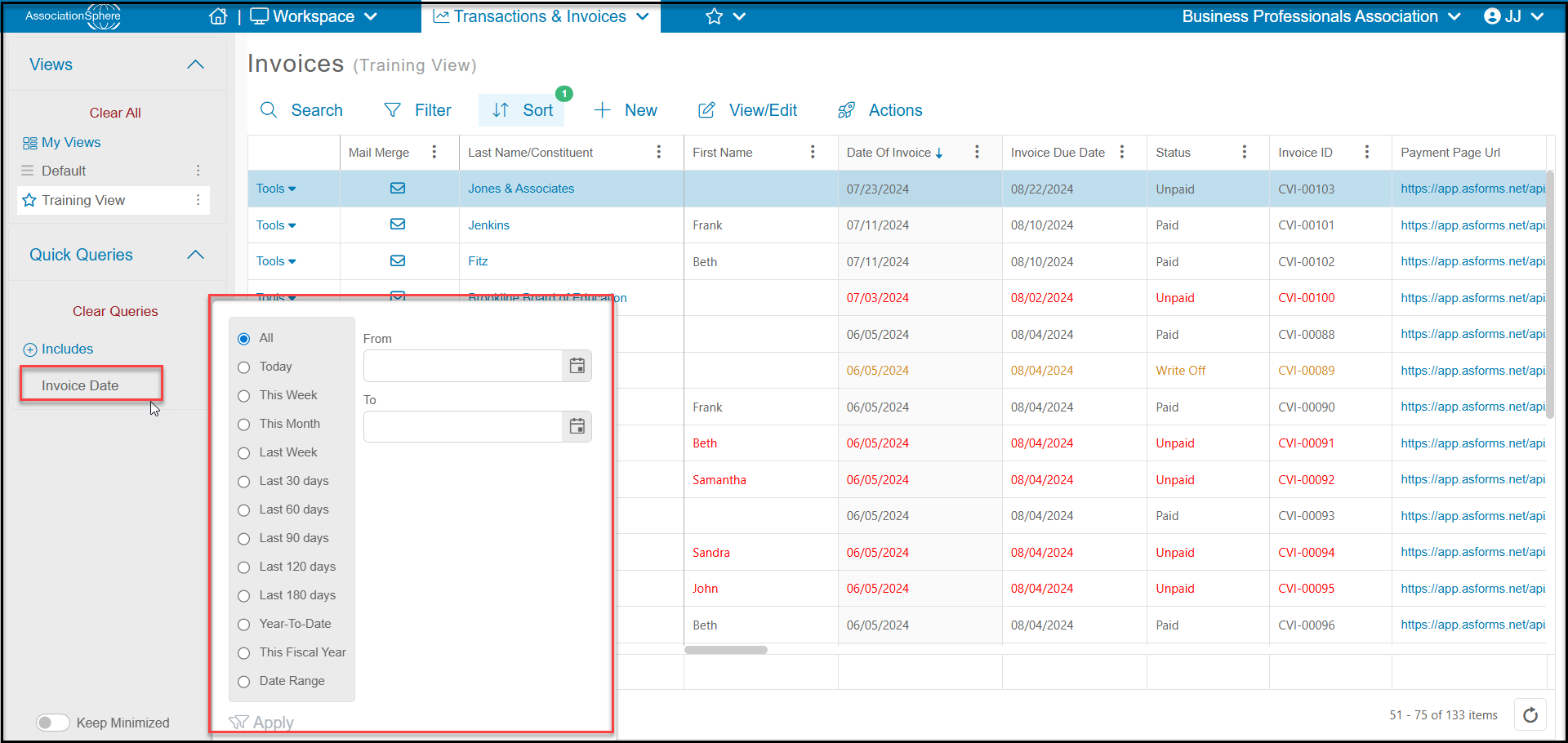
Example - Open invoices for memberships due in the next month
In this example we are looking for any invoices that are not fully paid, have a due date next month, and used the payment page we set up for memberships. This is one of the benefits of using multiple invoice payment pages to associate certain types of transactions with specific payment pages.
Start by using the Unpaid Invoices view from the View Library. This will show a list of all invoices with a status of Unpaid or Partially Paid (meaning there is still some balance due.)
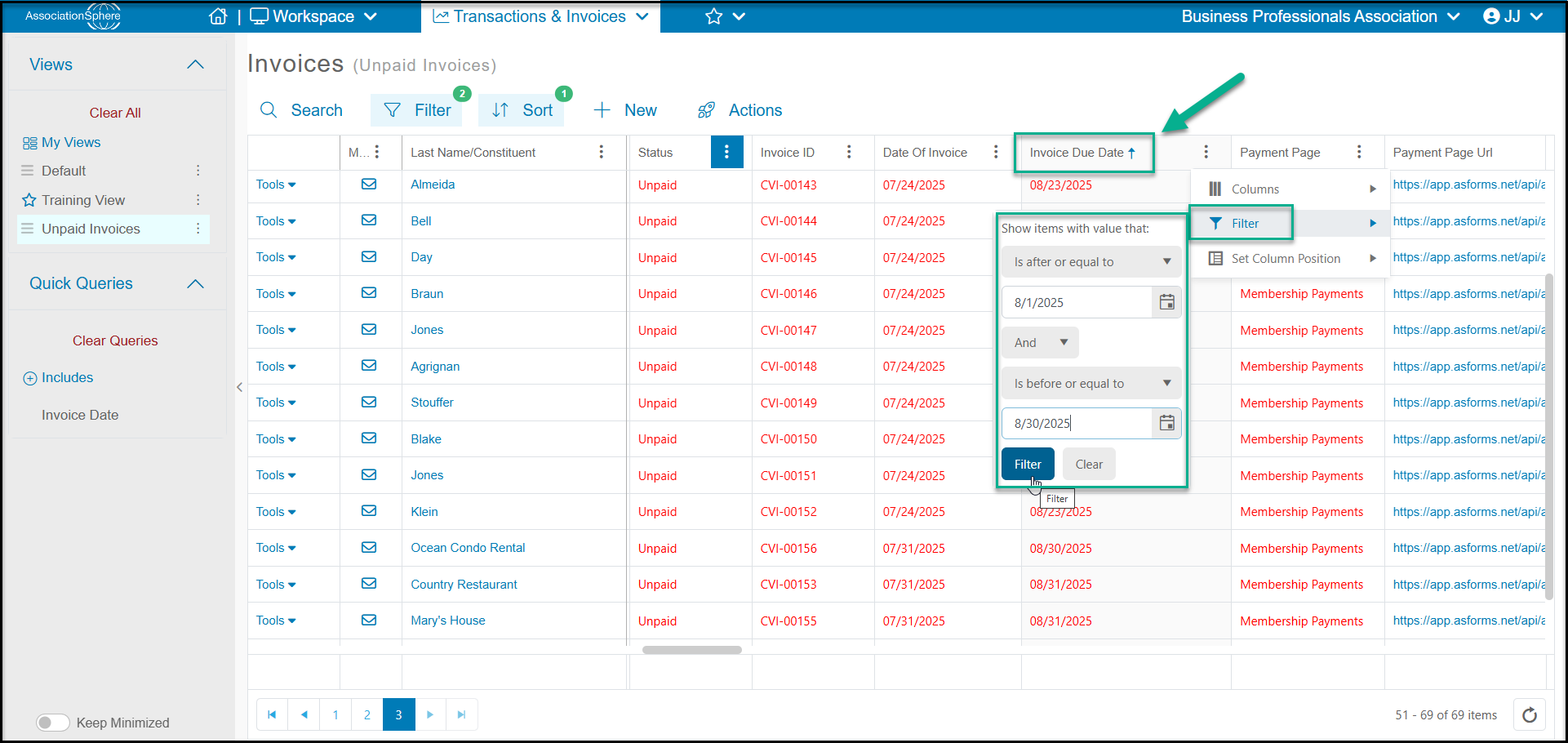
- On the Invoice Due Date column or using the Filter menu at the top of the grid, apply a filter for the date range. For example “Is after or equal to” 8/1/2025 and "Is before or equal to" 8/31/2025. Click Filter to show a list of just open invoices for that date range.
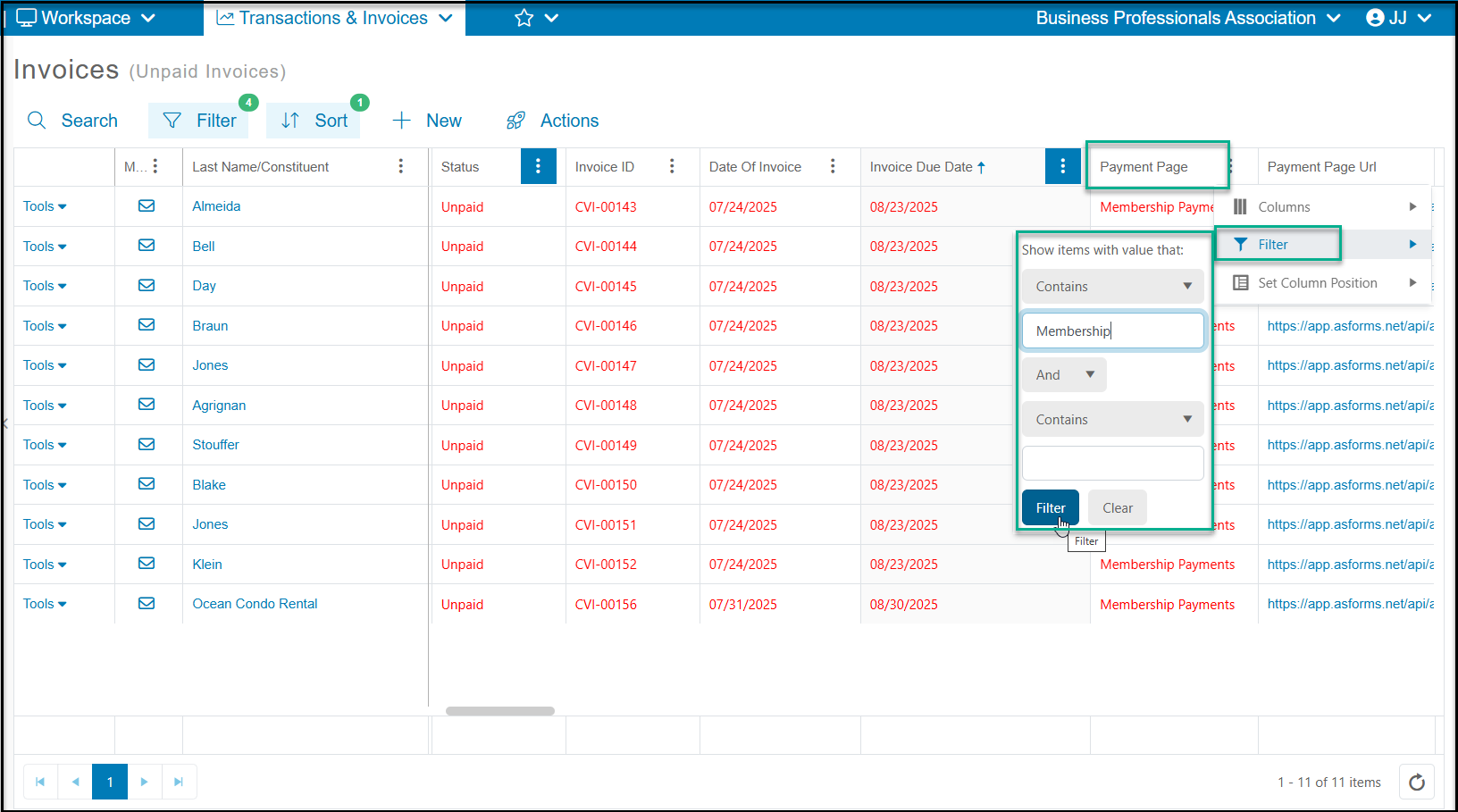
3. Our last step will be to add a filter for the Payment Page field. If using the Filter menu at the top of the page, be sure to use “And” to add this filter to the others. Or, you can apply the filter directly to the column as shown below. In our example, we have an invoice payment page called “Membership Payments” which we use when generating automatic invoices from a membership page or for any manually created membership invoices using the Membership Internal or Batch Renewals features. Click Filter to show only open invoices, in the above specified date range, that are only assigned to that invoice payment page.
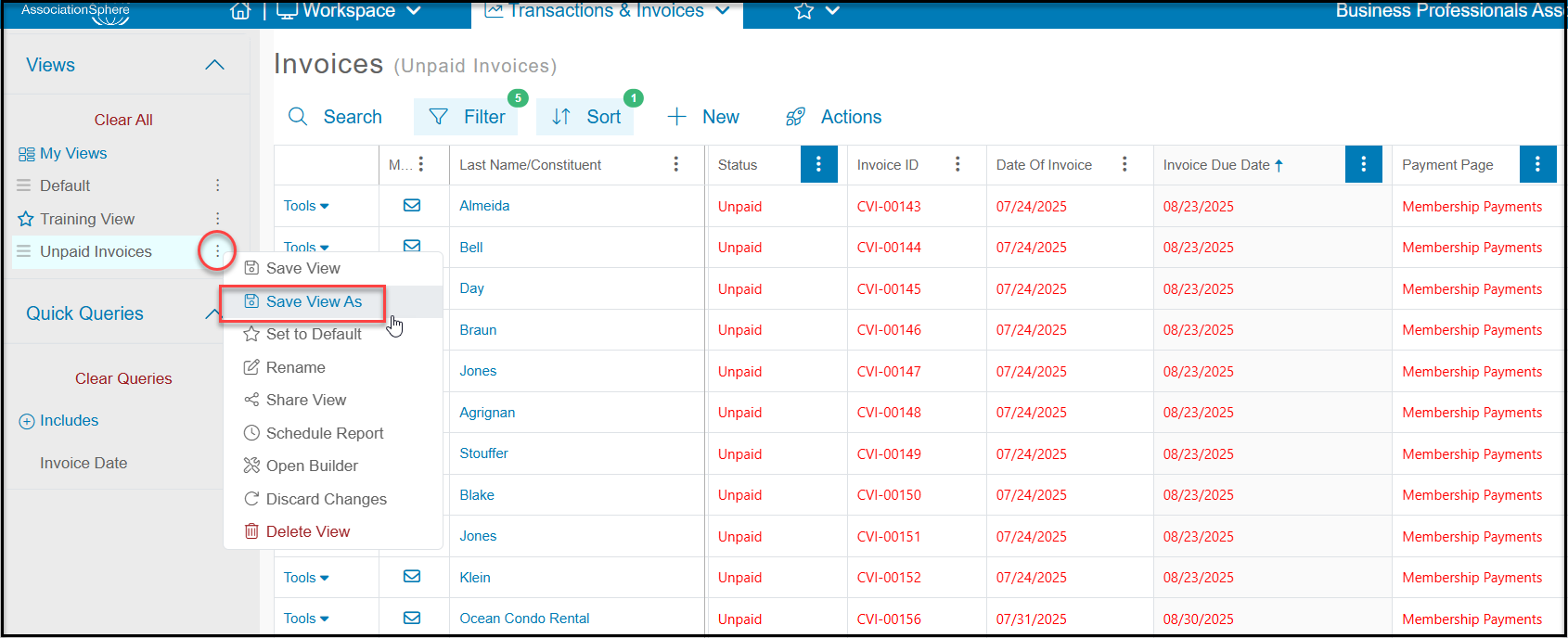
4. If you would like to save this view to use again in the future, you can click the three dots next to the view name and click on Save View As. You will enter a new name and click Save. You can open the view again anytime, but you will need to update the Invoice Due Date filters to be sure you are looking at the correct date range for your report.
5. You could use a view like this to generate invoice reminders using the Actions menu to send a letter using Print/Email Mail Merge or send a reminder via a Direct Email.
Transactions & Invoices Dashboard
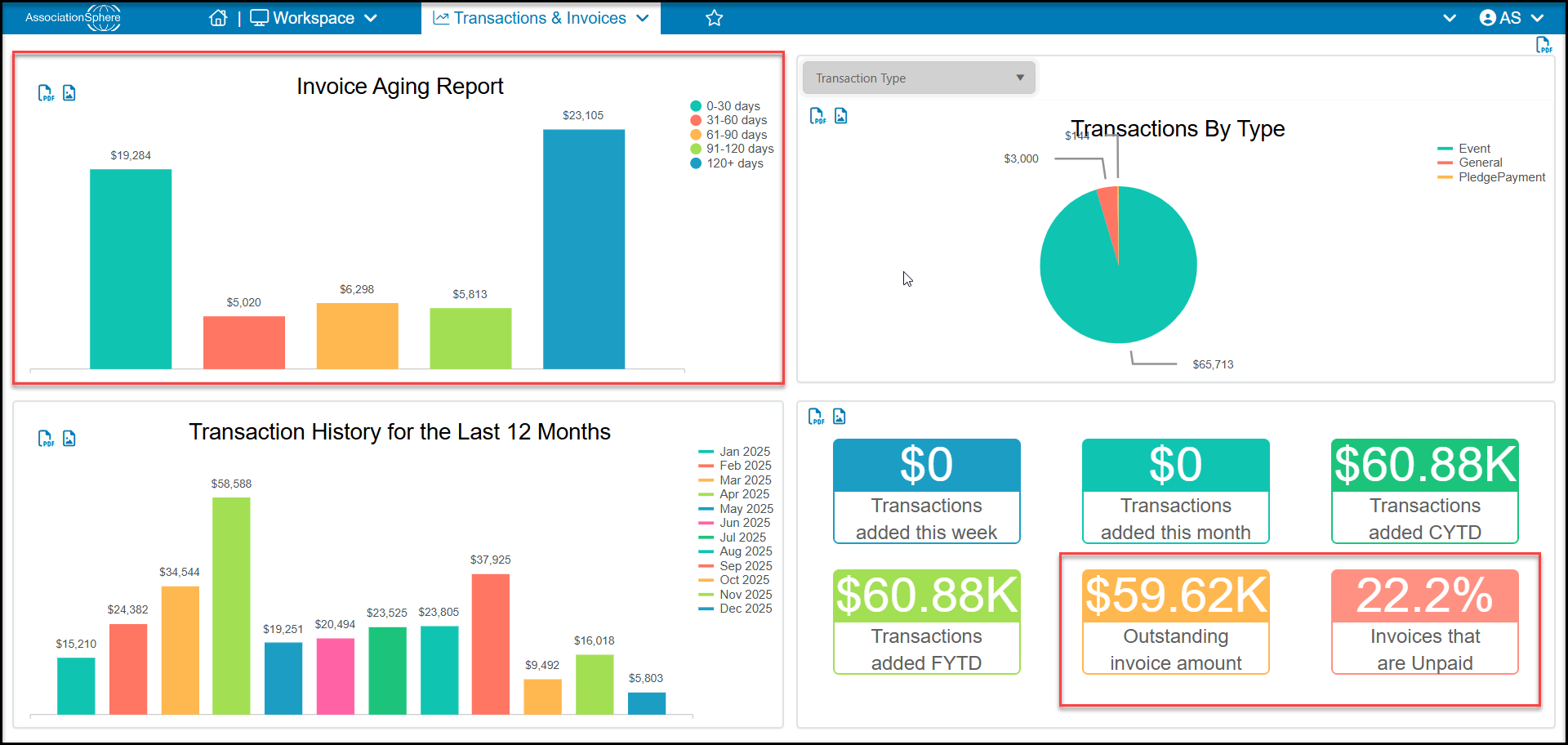
The Transactions & Invoices Dashboard has a quadrant in the top left of the window to show an Invoice Aging Report. Clicking on any of the bars will open a view on the Invoices grid showing all the invoices that make up that amount shown.
In the bottom right quadrant you can also see a snapshot of Outstanding Invoice Amount and the percentage of Invoices that are Unpaid.
Amount Due on Membership & Events Grids
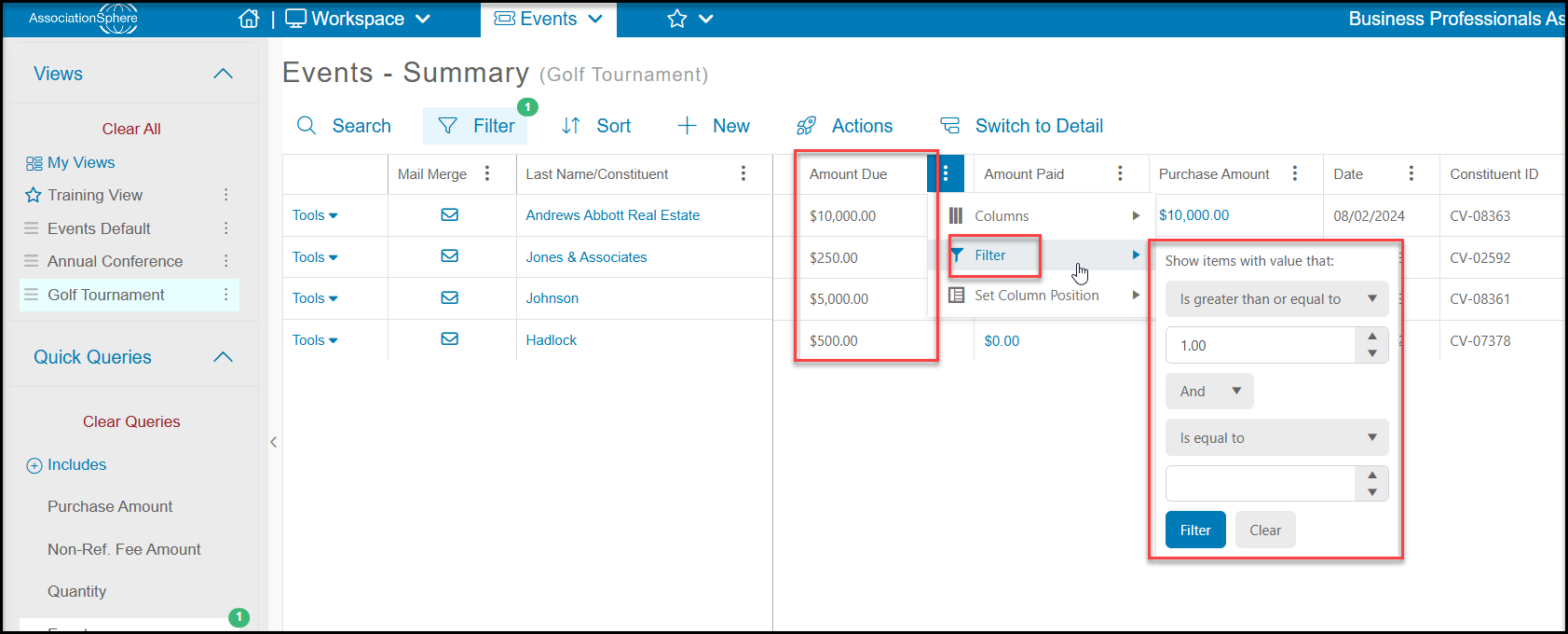
The Invoices grid does not provide a lot of detail about the line items for the invoices. You can open a specific invoice to see more details as needed. If you are looking for open balances for specific events, for example, you will find more information on the Events grid.
You would select your event from the Quick Queries menu, then apply a filter to the Amount Due column to show any purchases that have an Amount Due greater than or equal to $1. This list can be exported to Excel using the Actions menu. The events grid does not show any information about the invoice, but you can use this list to send a reminder of the balance due using the Print/Email Mail Merge or Direct Email features from the Actions menu.
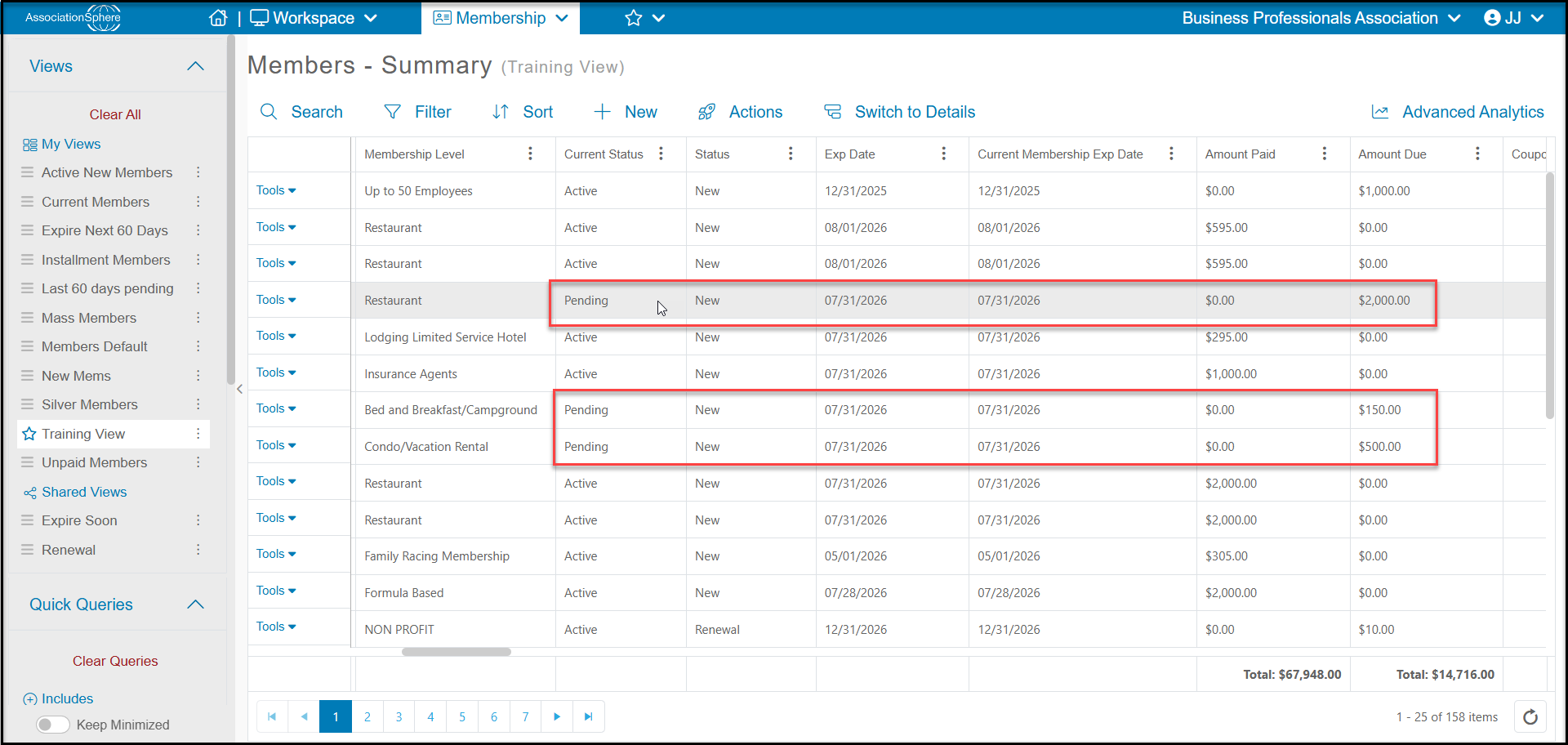
Memberships with a balance due will have a Current Status of “Pending” to indicate the membership has not been paid. You can see the Amount Due and add a filter as described above to show all memberships with a balance due. You could also add filters for things like Exp Date or Membership Level for more detail.