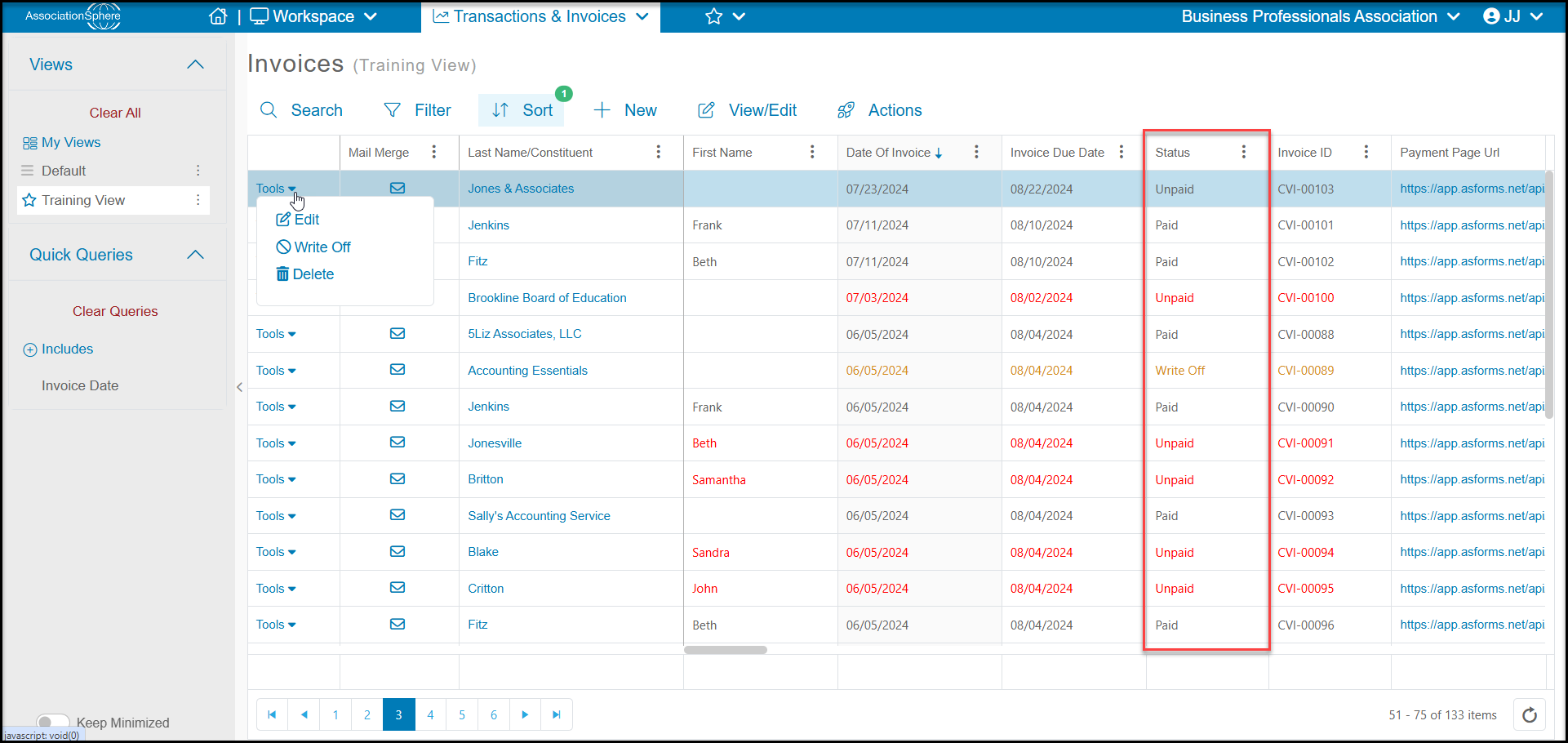
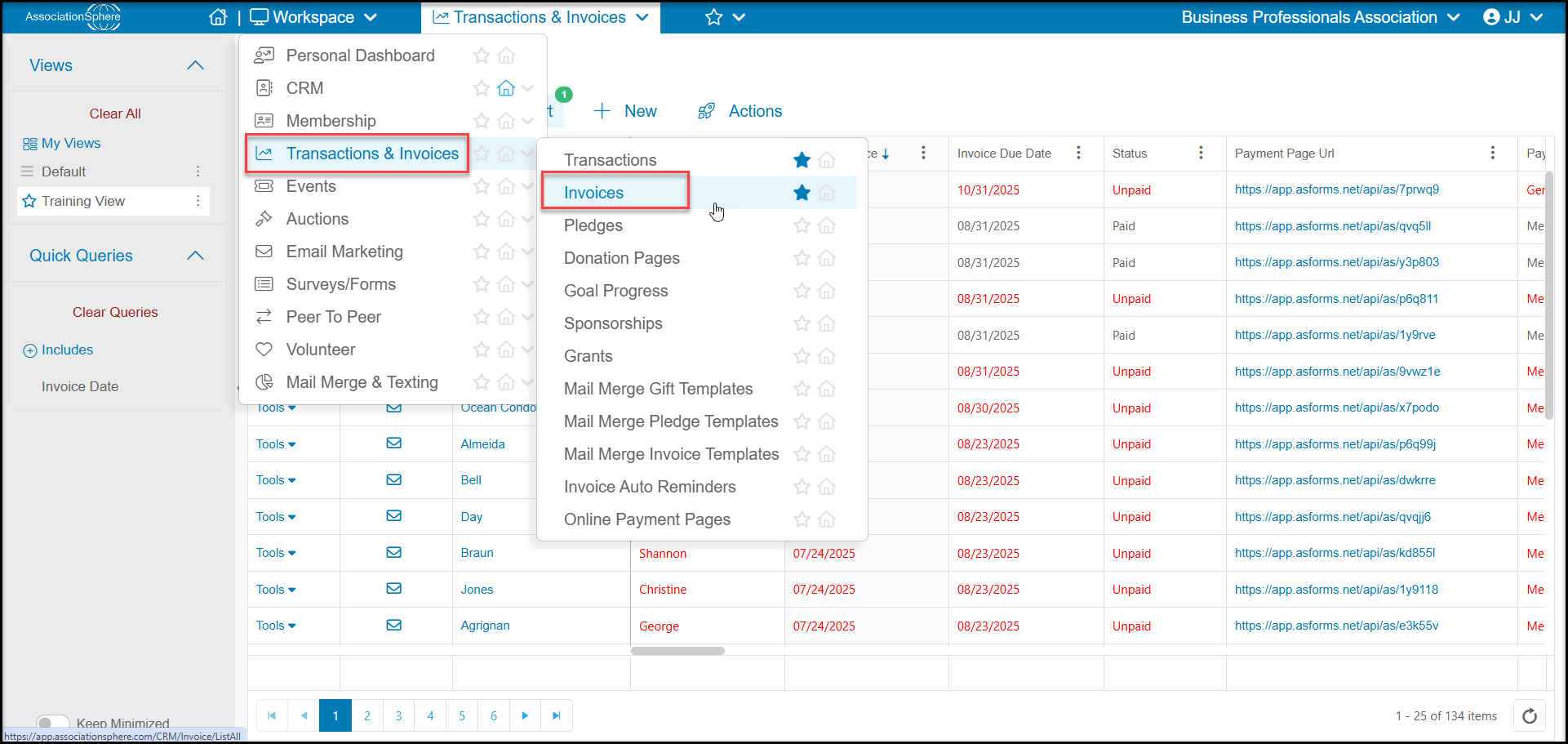
The Invoices grid will provide a listing of all invoices that were manually or automatically generated in the software. You can find the grid in the Transactions & Invoices module on the Invoices page.
The grid will show information related to the constituent linked to the invoice including their name, address, company contacts, email, phone number, constituent ID and other details. Other important columns include:
- Date of Invoice - the date the invoice was generated
- Invoice Due Date - the date the invoice payment is due
- Status- there are four options
- Paid - the invoice is paid in full, no balance due.
- Unpaid - the invoice has no payment recorded, the entire balance is still due.
- Partially Paid - there has been at least one payment made towards the balance, but there is still a balance due.
- Write Off - there was a balance due, but the invoice is not expected to be paid, so it is marked as a write off. This will not delete or cancel any membership or event transactions linked to the invoice, they will still show a balance due in those records.
- Invoice ID - the unique number generated for the invoice by the software.
- Payment Page URL - the unique link to pay the invoice with a credit card.
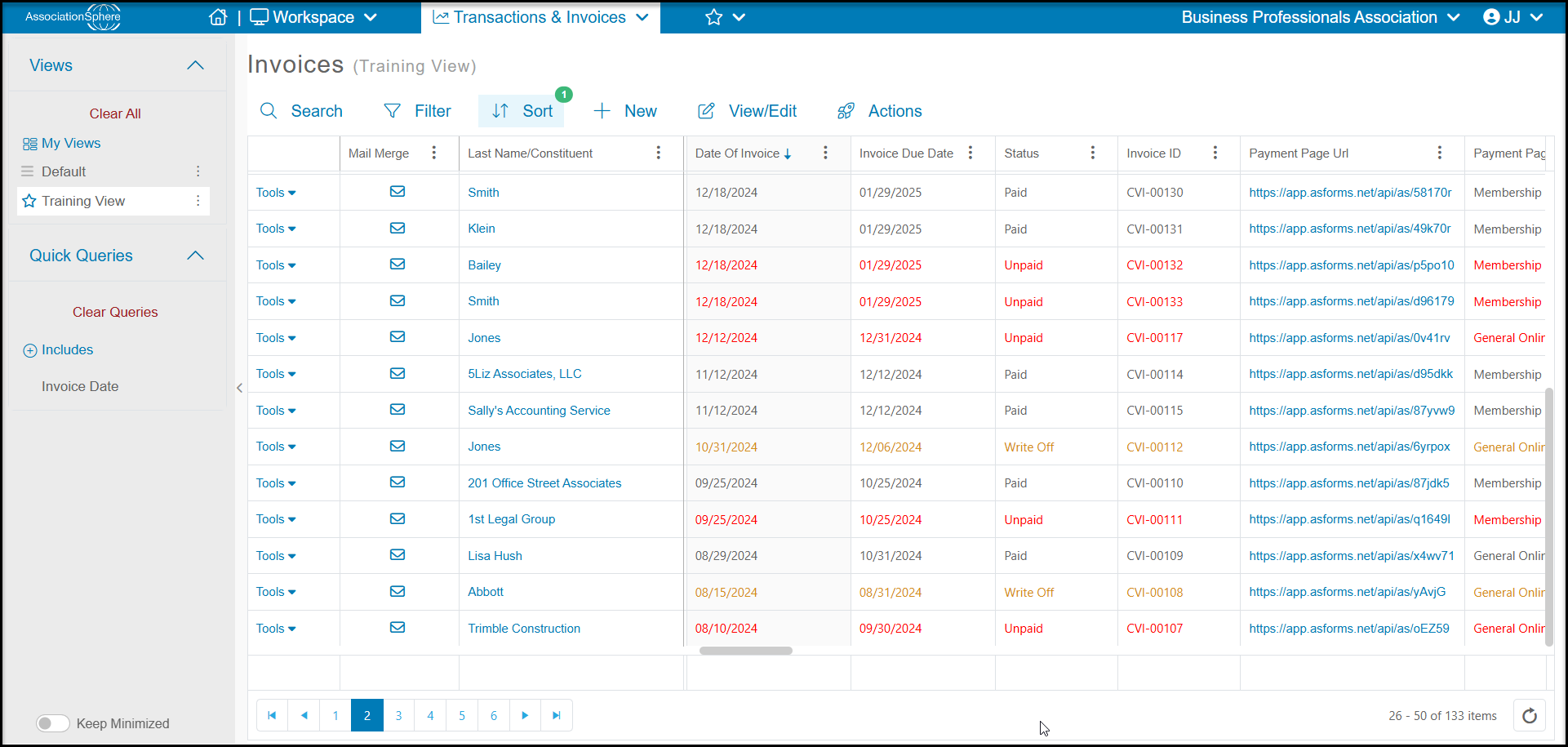
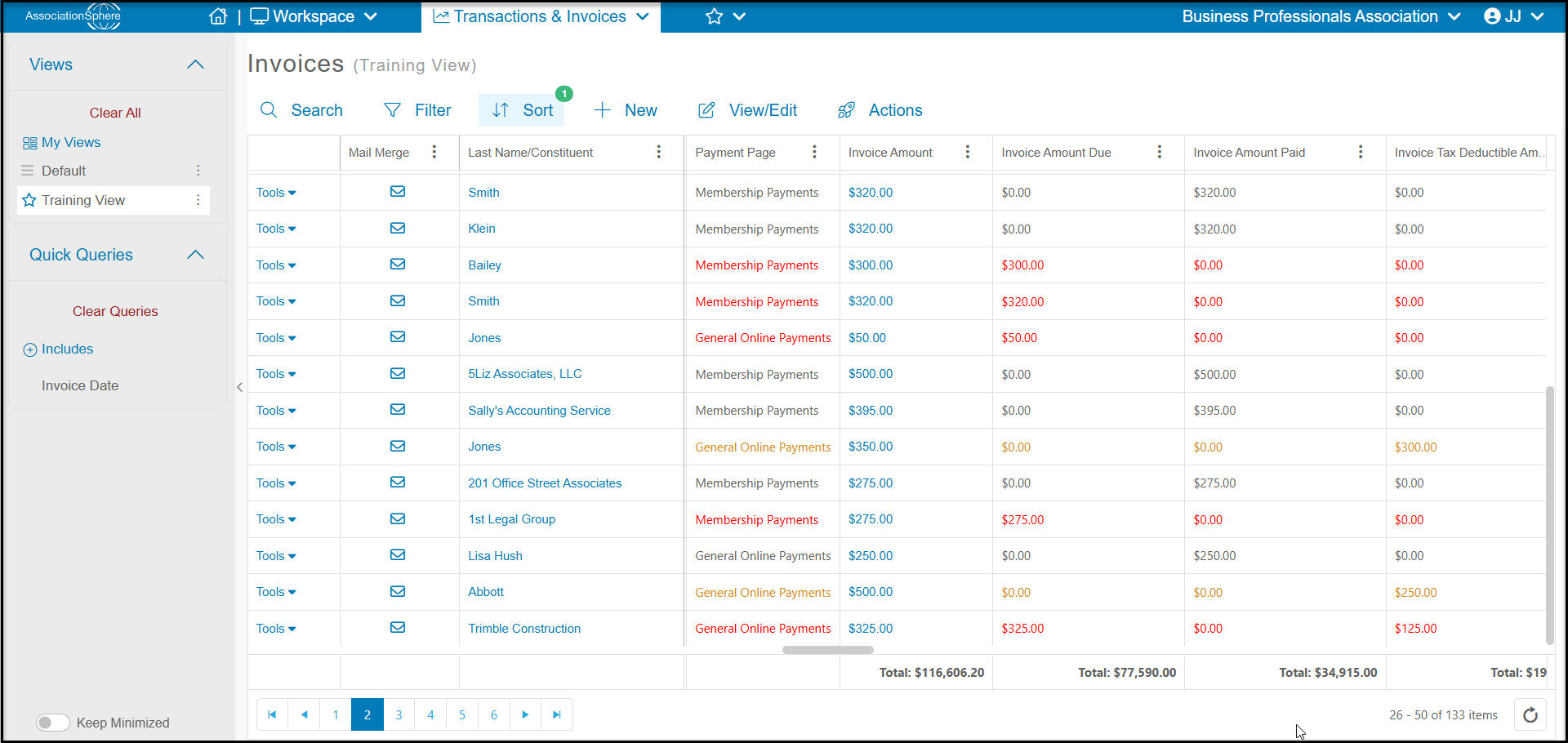
- Payment Page - which invoice payment page assigned to the invoice.
- Invoice Amount - the total amount of the original invoice.
- Invoice Amount Due - the balance due for the invoice.
- Invoice Amount Paid - the amount that has been paid to date.
- Memo 1 and Memo 2 - the memo fields available on a manually generated invoice.
- Last Payment Date - if there was a payment applied, the date of the most recent payment.
- Last Payment Type - how the payment was made, for example credit card, check, etc.
- Created By - who created the invoice, it will say “Automatic” for any auto-generated invoices.
- Modified By - if the invoice was edited, you can see which internal user edited the invoice.
- Modified Date - the date the invoice was edited.
Invoices Grid Menus
Search
The search menu allows you to search for specific constituents. The dropdown contains fields related to the constituent.
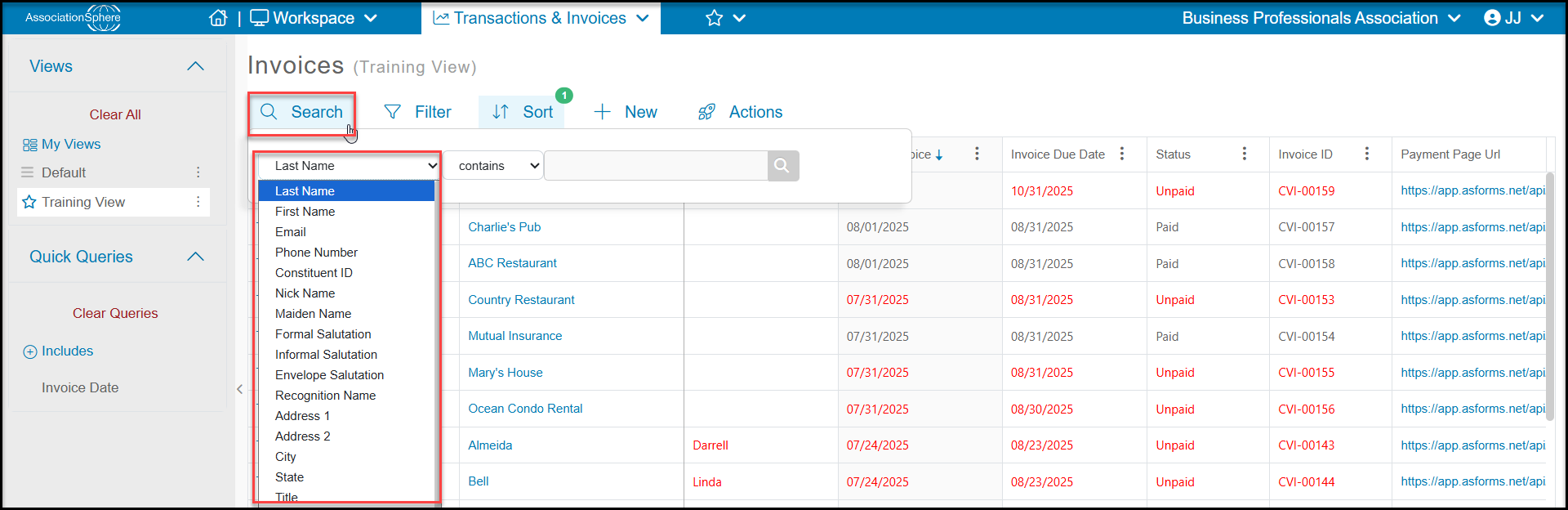
At the very bottom of the search list dropdown, there is also an “All” option which allows you to search all of the text fields which you could use to search for a specific Invoice ID, for example. To clear your search, click the “x” next to the search field to reload your view.

+New
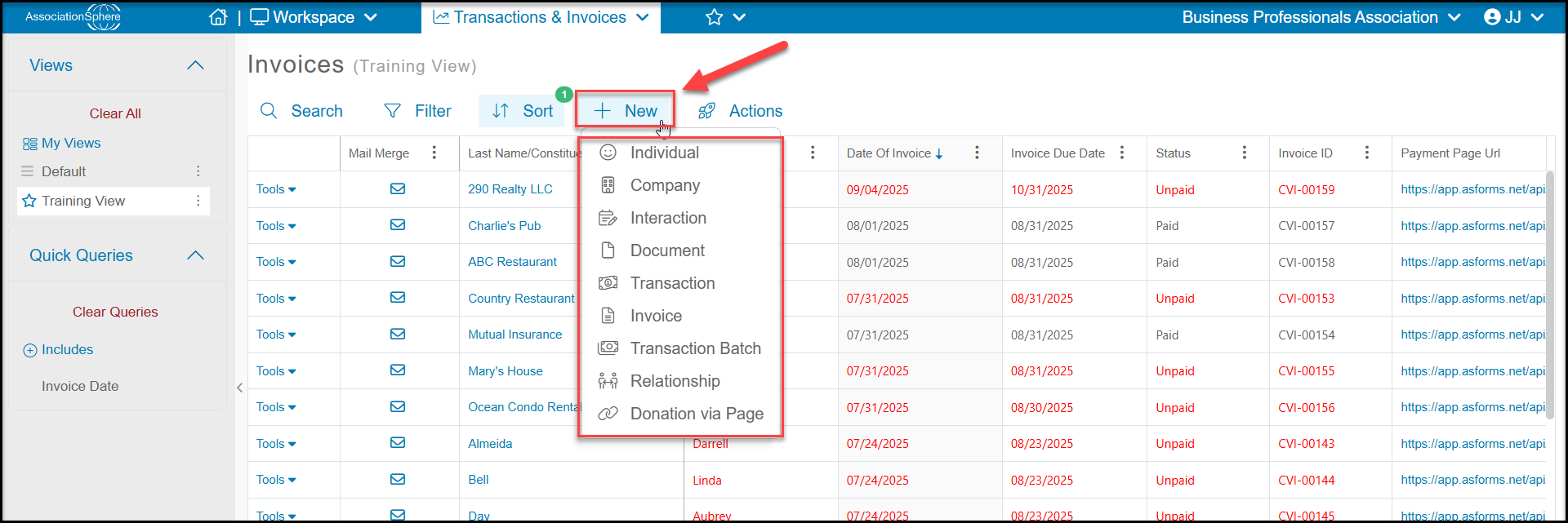
The +New menu allows you to add new:
- Individual Constituents - to search the database and then enter a new individual-type constituent record
- Company Constituents - to search the database and then enter a new company-type constituent record
- Interactions - to add a new interaction record to a constituent's record
- Documents - to upload a new document to a constituent's record
- Transactions - which can be used to create a new transaction to record an invoice payment
- Invoices - to generate a new invoice
- Transaction Batches - for entering multiple general-type transactions at once
- Relationships - to create a new relationship
- Donations via Page - to enter a donation with a credit card by opening an AssociationSphere Donation Page
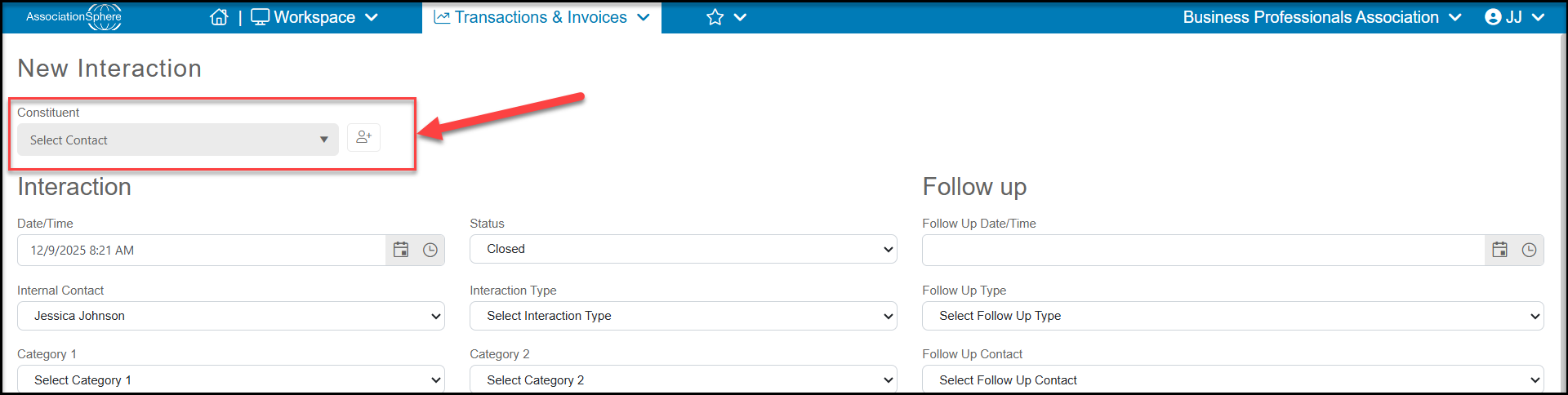
If you do not have a constituent's record selected, you can select the constituent or add a new one at the top of the page.
If you have a constituent's record highlighted on the grid, it will auto-populate the Constituent field with that constituent's name, but you can select a different one if desired.
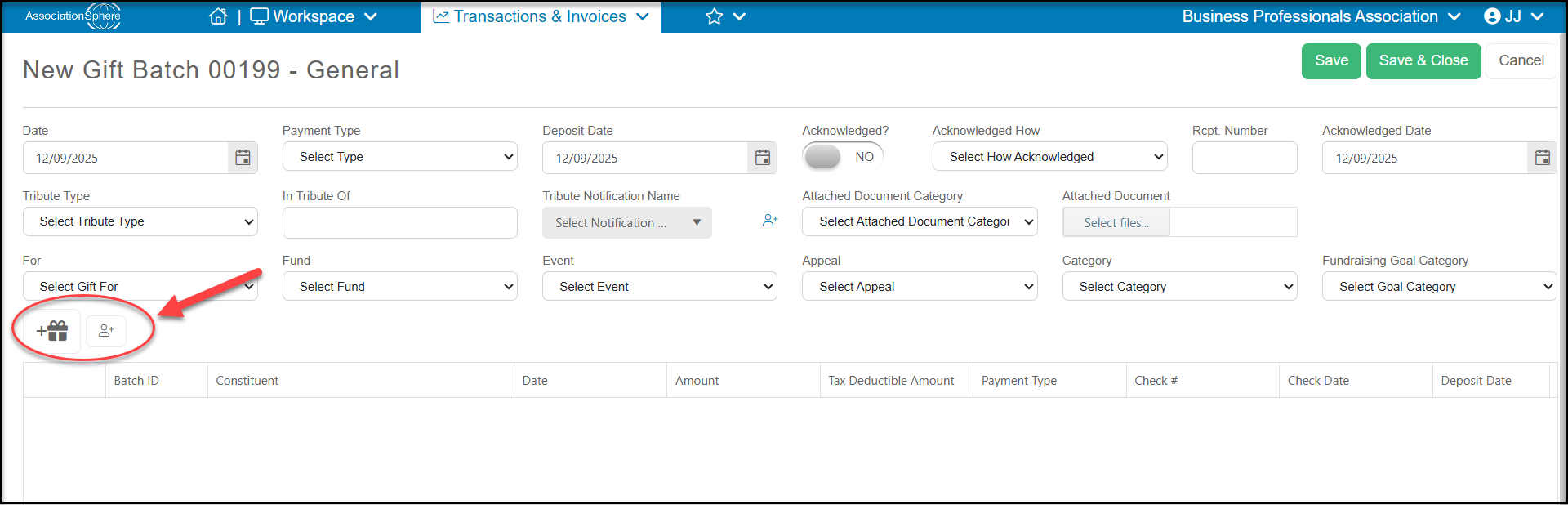
The Transactions Batch is an option to allow you to enter multiple general-type transactions at once. This is usually used when you have a large number of checks received after a fundraising appeal and all the contributions have similar attributes for the payment type, deposit date, and revenue categories.
You can click on the gift box icon to add a transaction from an existing constituent or use the Add Constituent icon next to it to add a new constituent record. Once the new record is added, you use the gift box icon to select the new constituent.
Gift Batches are assigned a unique Batch ID number which you can use on the Transactions grid to filter the list and produce batch acknowledgements.
View/Edit
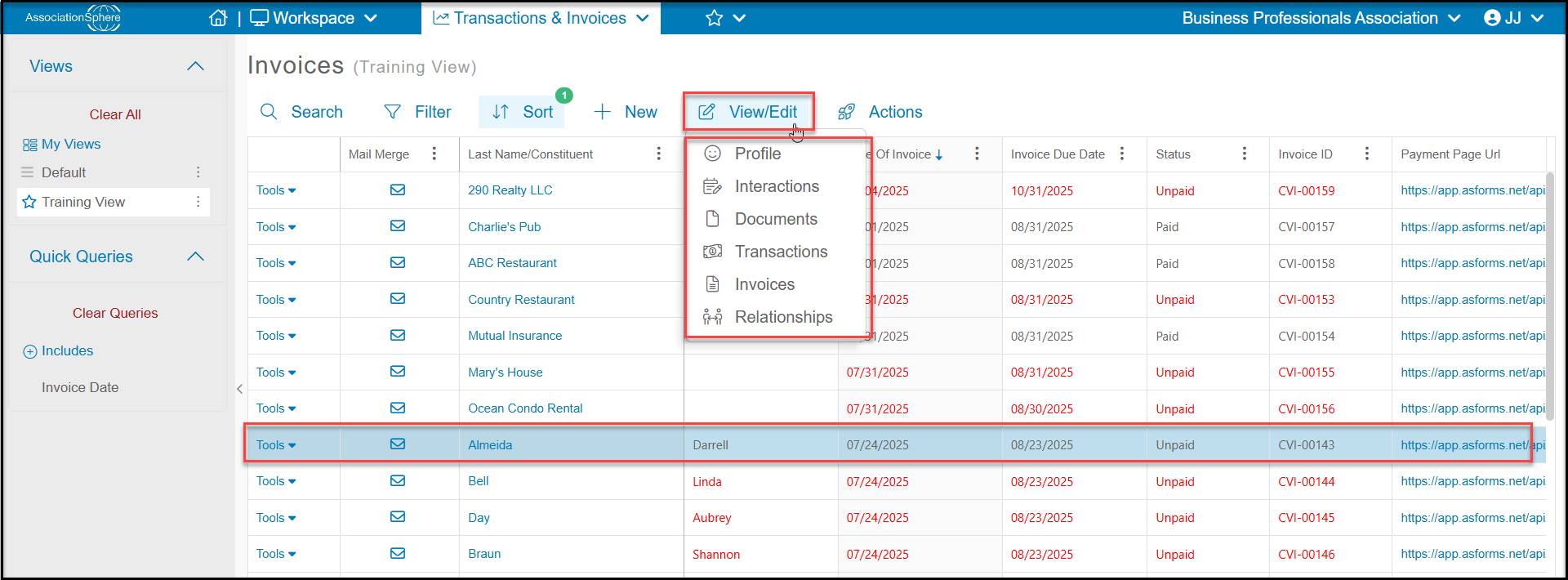
With a row highlighted, you will see the View/Edit menu at the top of the grid. This menu allows you to go directly to the constituent's record and their sub-tabs to view their data as needed. The menu includes links to the following tabs:
- Profile
- Interactions
- Documents
- Transactions
- Invoices
- Relationships
Actions
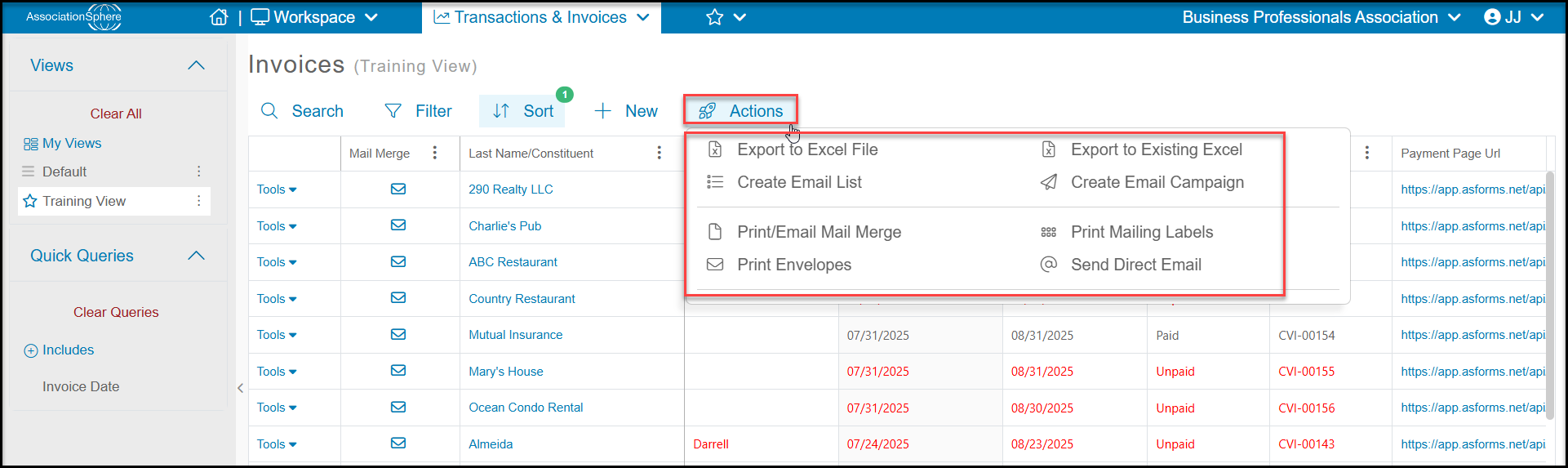
The actions menu has many of the same features you will find on other grids including:
- Export to Excel File, which will export the data on the grid to Excel. Note that to export your list, you must have your pop-up blockers off for your browser. If you export a file and nothing happens, be sure to check that your pop-up blocker is off.
- Export to Existing Excel - if you create a Excel spreadsheet with your data and then create pivot tables or charts with that data, you can refresh the data in your file by Exporting to Existing Excel. It will completely overwrite the previous data and show the new information in your pivot tables or charts.
- Create Email Lists - creates an email list to be used with the Email Marketing module.
- Create Email Campaigns - initiates a new email campaign from the Email Marketing module.
- Print/Email Mail Merge to send mail merge letters to invoice recipients. It allows you to choose an mail merge template letter created in the Mail Merge Invoices Template library. This is one method used for sending manual payment reminders.
- Print Mailing Labels and Envelopes - allows you to print pre-built labels, name tags and envelopes by choosing your label or envelope types.
- Send Direct Emails - sends standard emails from the software to the records included in your view and saves a copy in the constituents record. You can also use direct emails for manual payment reminders.
Tools
On the left side of each row is the Tools menu. For invoices with a Status of Unpaid or Partially Paid, you will find three options, Edit, Write Off and Delete. For paid invoices, you will only see Edit and Delete as options.
- Edit - will open the invoice edit window to allow you to edit the invoice
- Write Off - will mark the status of the invoice as “Write Off” in the Status column. Adding this status indicates that you are not expecting this invoice to be paid. You still wish to keep the historical information about it. The payment page URL link is still active, if the constituent ever does decide to pay by credit card. Marking an invoice as a “Write Off” does not create a negative transaction and it does not affect any transactions that are linked to the invoice. For example, an invoice for membership dues that is marked as a write off, will still show a balance due for the membership transactions on the Memberships grid.
- Delete - will delete the invoice, but not any linked transactions like membership, event, pledge, or auction transactions.