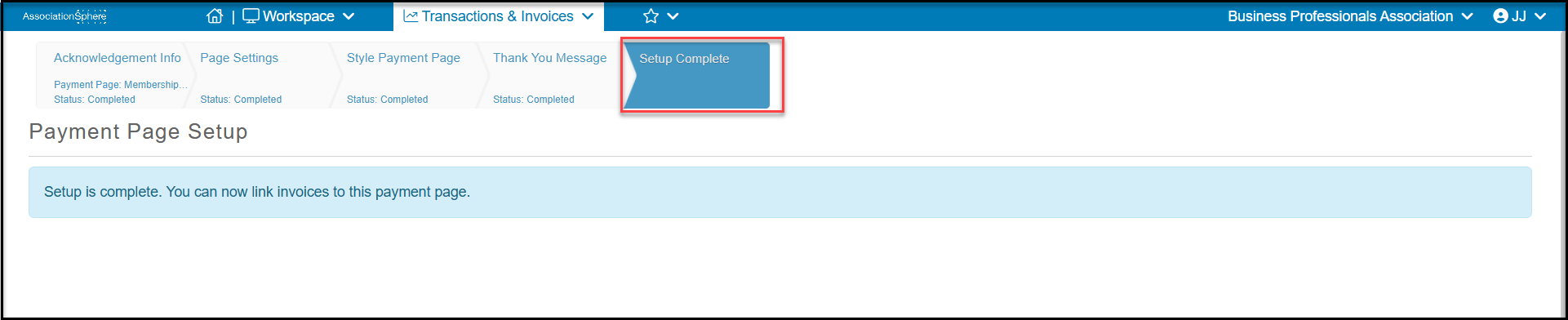
The Online Payment Page is the first step for creating invoices. There must be at least one Online Payment Page built in order to manually or automatically create a invoice.
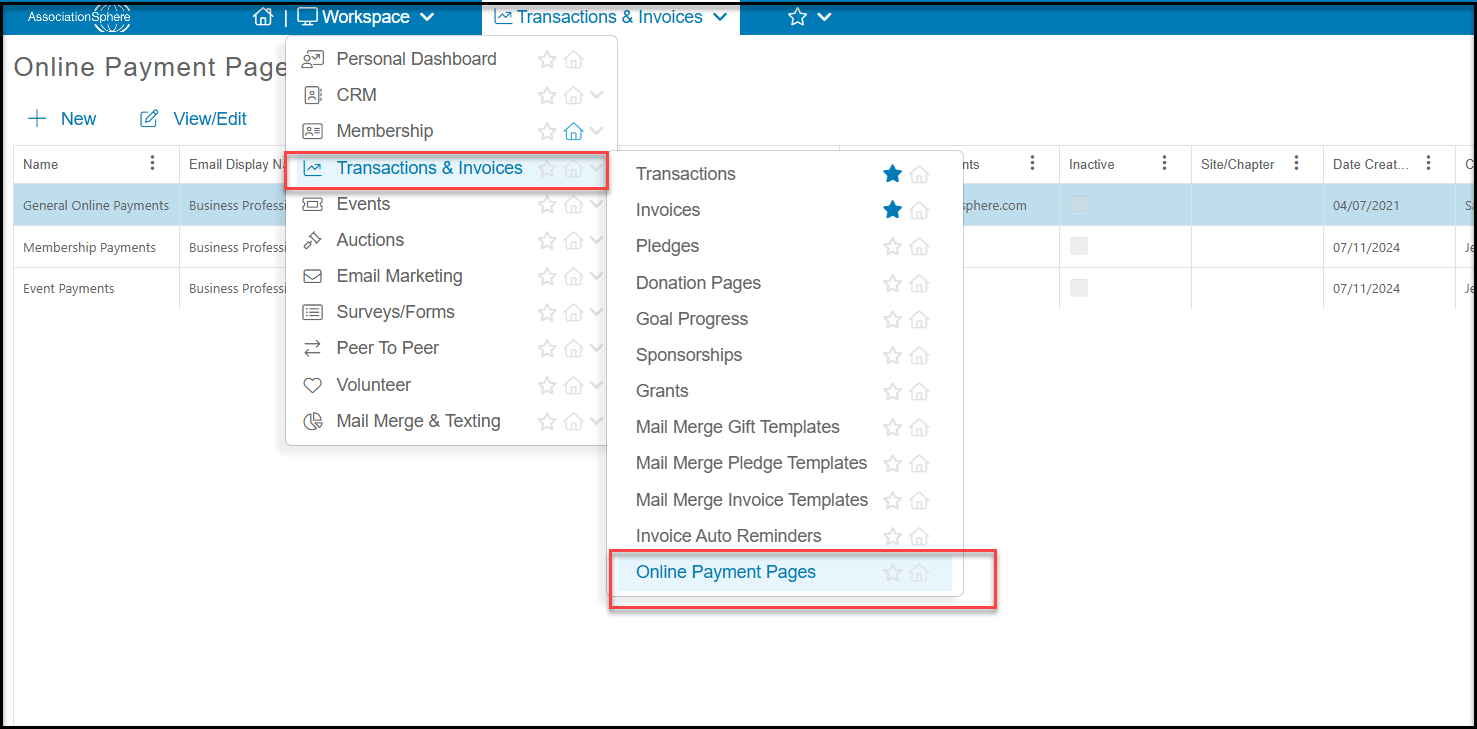
To create or edit an Online Payment Page, go to Workspaces > Transactions & Invoices > Invoices > Online Payment Pages.
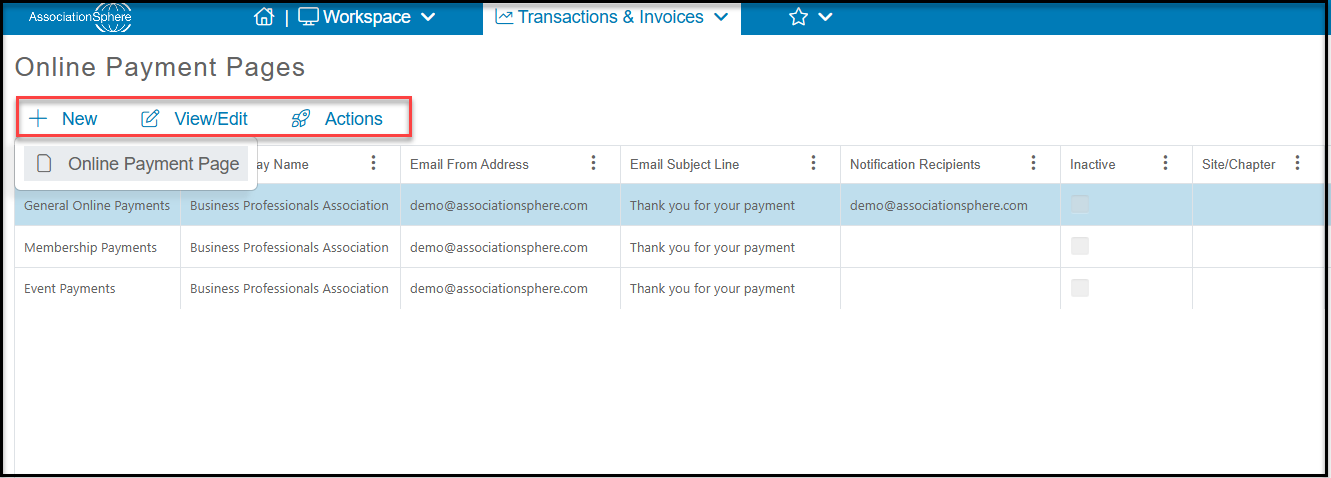
Click on +New to create a new page. You can also click in the row of an existing page and click View/Edit to open or click on Actions, then Copy Online Payment Page to create a copy.
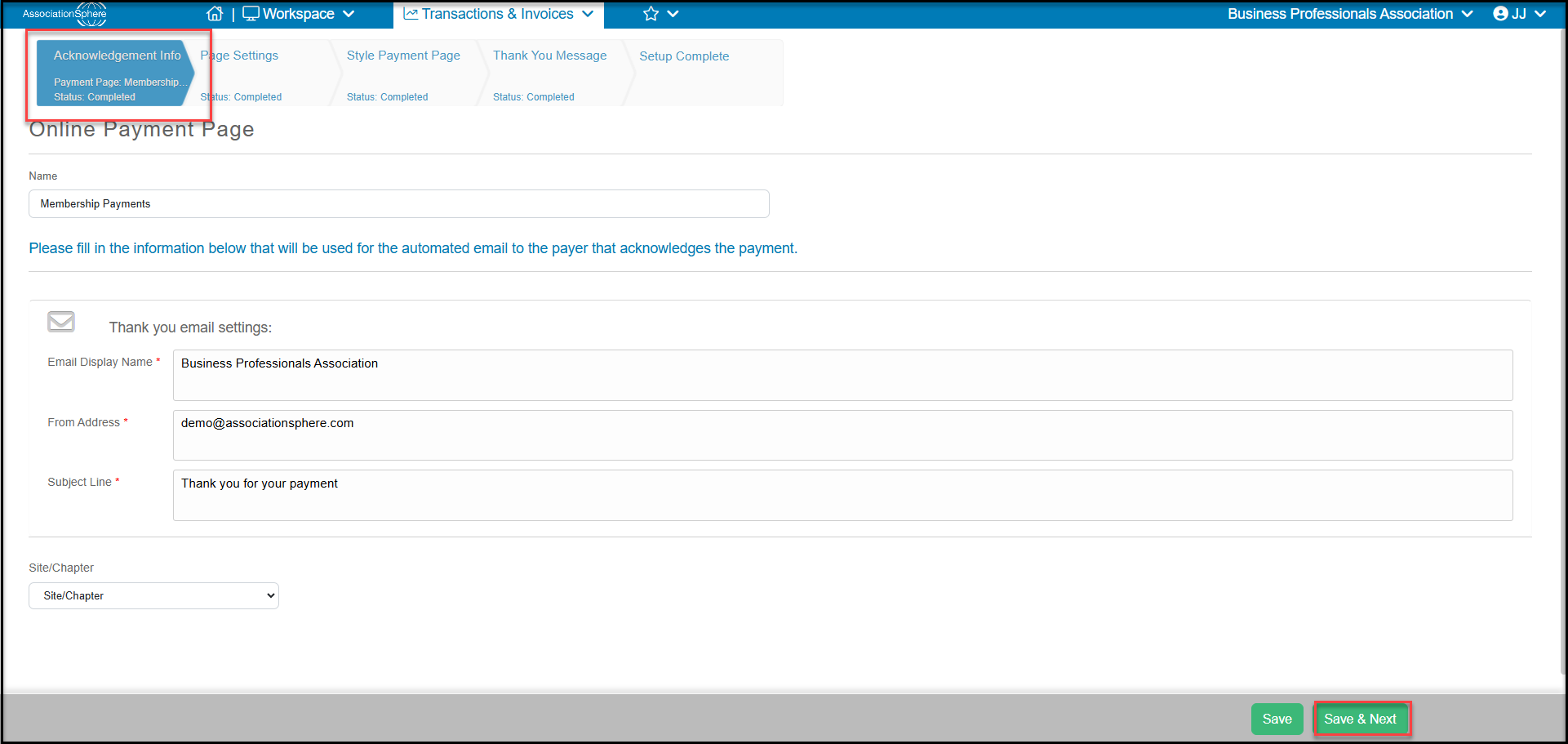
Follow the set up wizard, starting at the Acknowledgement Info tab on the left. As you complete each page, click Save to save your work or Save & Next to proceed to the next page. Note that if you are working in an existing page, Save & Next will take you to the last page. You can always click on any of the tabs to go to that page.
From the Acknowledgement Info tab, name your online payment page and enter the information that will be shown for the automatic thank you emails that are sent to the constituent when a payment is made. Click Save & Next to proceed.
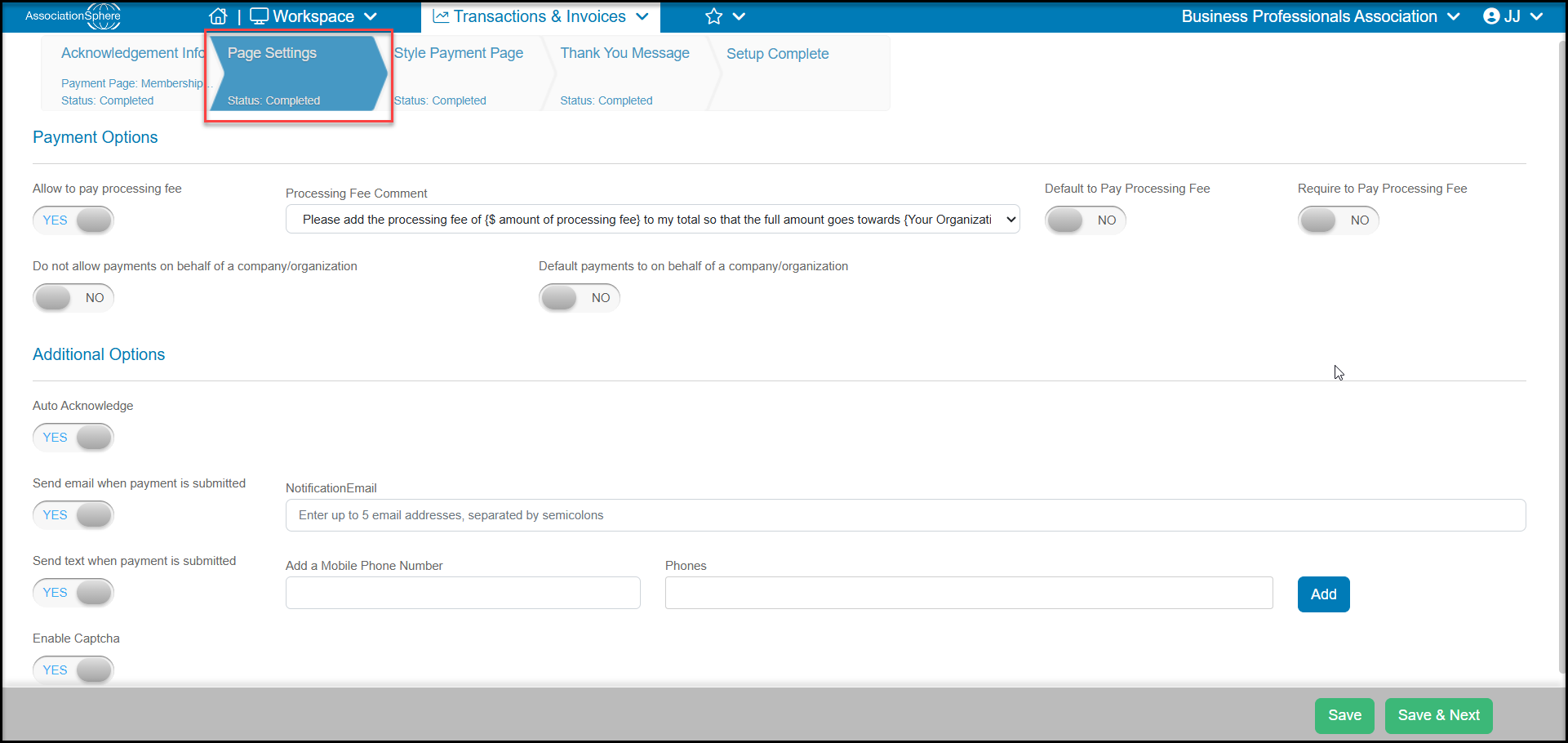
Next, choose the page setting options.
- When Allow to pay processing fee is set to YES, you can also select the Processing Fee Comment and choose to Default to Pay Processing Fee or Require to Pay Processing Fee. Note that you should set up your processing fee options the same as you have on your membership or event page to ensure the proper selections are included for the invoice payment.
- The invoice will be automatically linked to the constituent for whom the invoice was created, so the toggles for Do not allow payments on behalf of a company/organization and Default payment on behalf of a company/organization are no longer applicable and should be left NO.
- When Auto Acknowledge is set to YES, it will automatically mark the transaction as Acknowledged on the Transactions grid.
- You have the option to set up notifications when credit card payments are made either with Send email when payment is submitted or Send text when payment is submitted (if you have text messaging activated) by setting them to YES and entering the email or phone numbers to notify.
- Enable Captcha is a box the constituent must check on the form to indicate they are not a robot. This is optional.
- Click Save & Next to proceed.
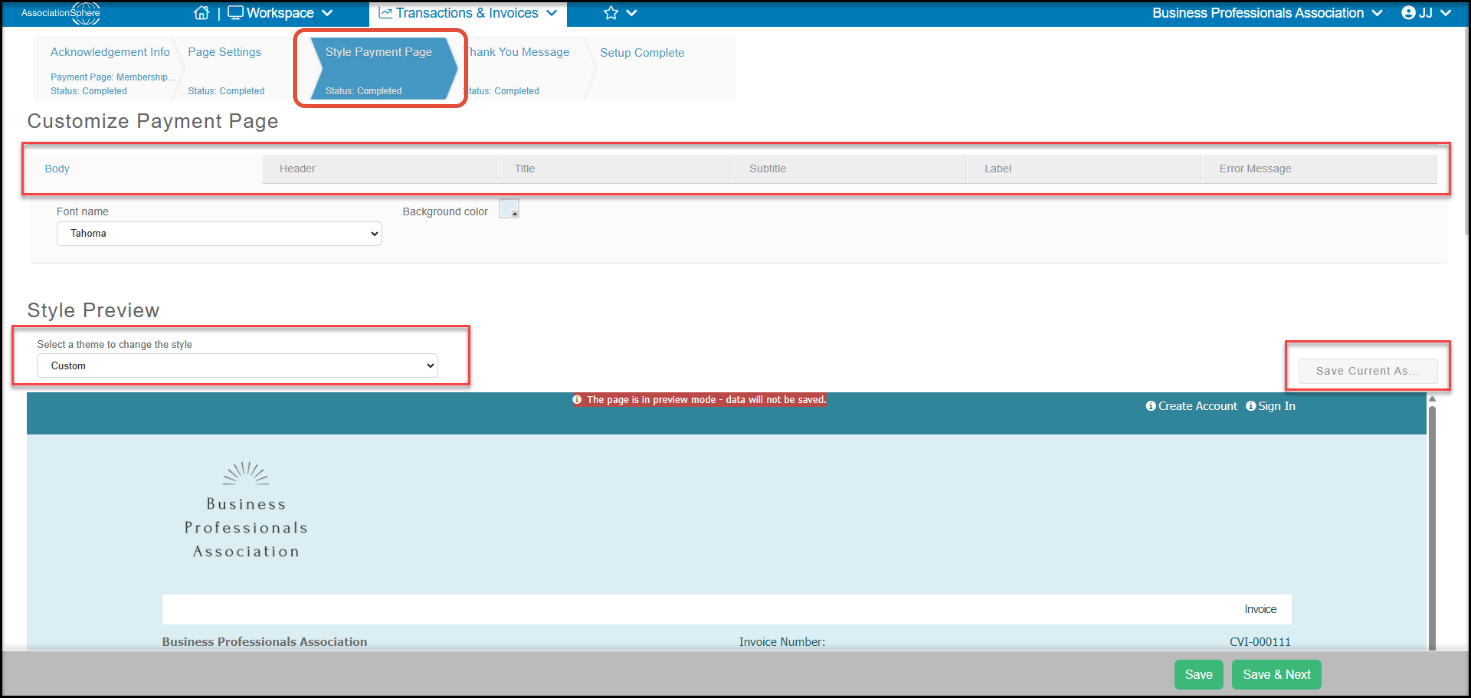
The color themes can be customized on the Style Payment Page tab. You can modify the colors, fonts, and font sizes using the Body, Header, Title, Subtitle, Label, and Error Message tab. You can also save the custom these for use on any page using the "Save Current As" button on the right side of the screen above the preview. Click Save & Next to proceed.
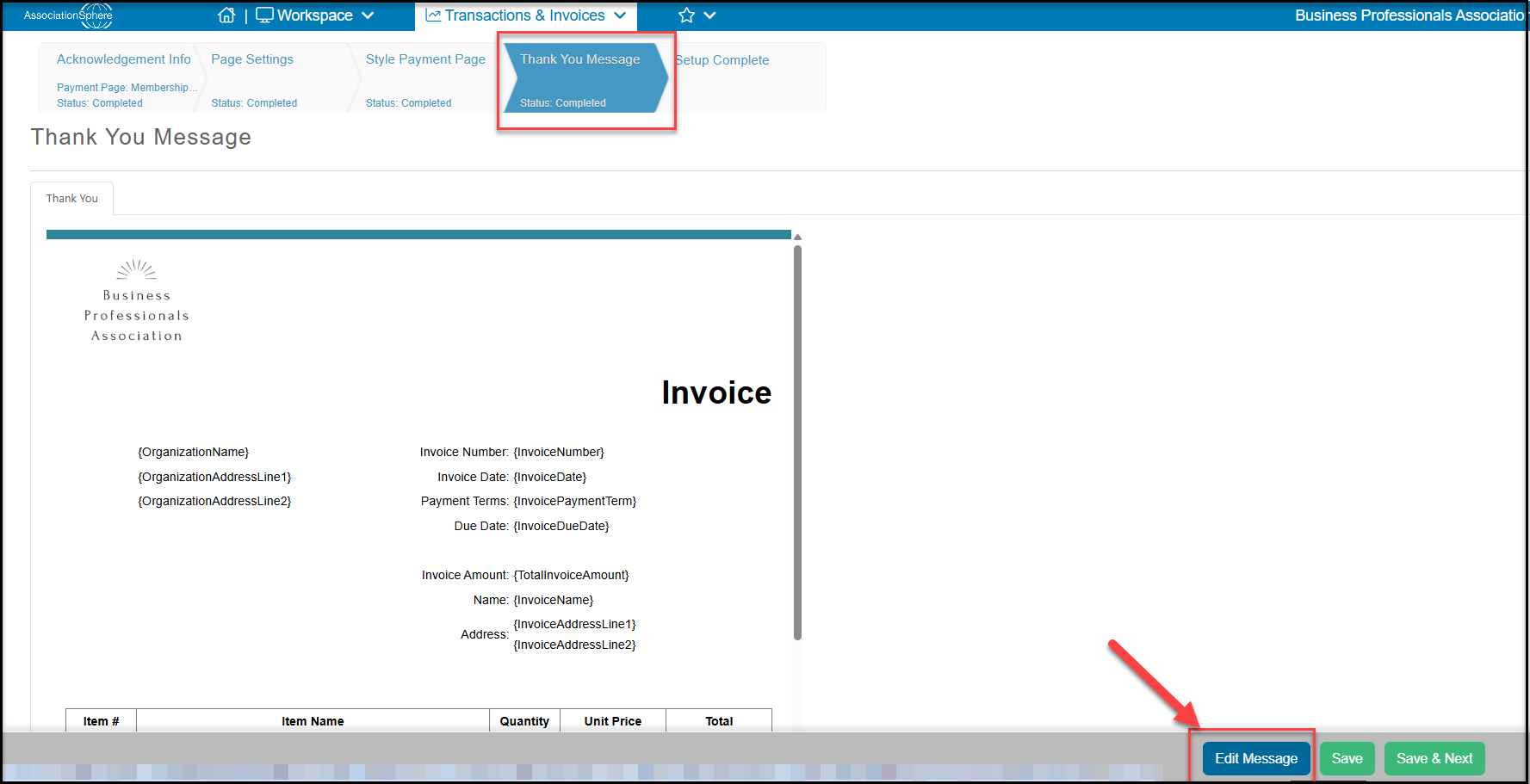
The Thank You Message generates a copy of the invoice that matches the branding in your style page. To edit the message, click the blue Edit Message button at the bottom of the page.
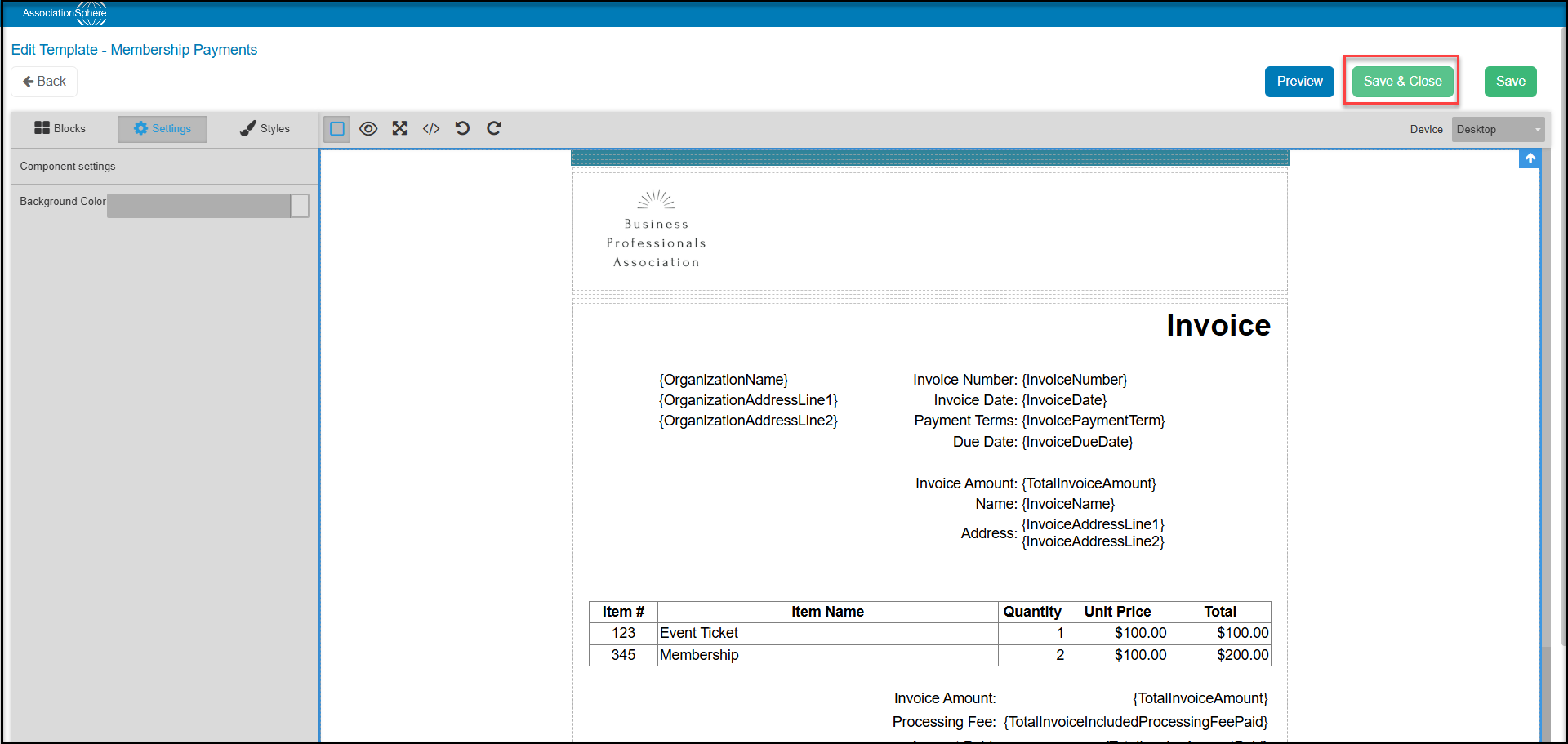
You can edit the automatic email in the same type of editor as the Email Marketing Templates. It is important not to delete the standard layout as this information is all critical for the receipt, particularly if partial payments are allowed. You can customize the colors and fonts using the Settings tab on the left for each block/section. You can also insert blocks or content above or below the invoice information to add whatever additional information may be required.
Once you have finished any edits, click Save & Close, then Save & Next to complete the setup of your Online Payment Page.
The page is now available for creating invoices and to select on Membership and Event pages for Pay Later options which automatically generate an invoice.